This article applies to:
Question:
This article describes detailed instructions on how to:
- Generate CSR request for Scanning Server using Trustwave SWG Web interface
- Submit CSR request data using MS PKI Web interface
- Import certificate information into Trustwave SWG Scanning Server
Procedure:
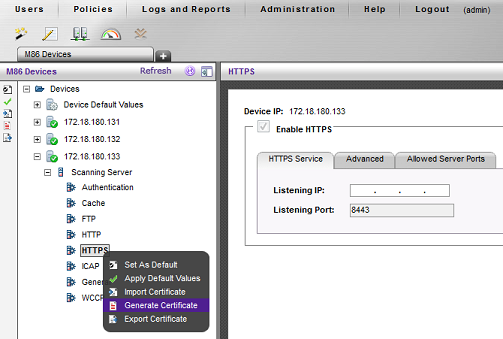
1. Navigate to the Devices section in Trustwave SWG GUI, right-click the HTTPS module on the scanner and choose Generate Certificate option:
2. Choose CSR Certificate Type in the right pane and fill in all relevant details:
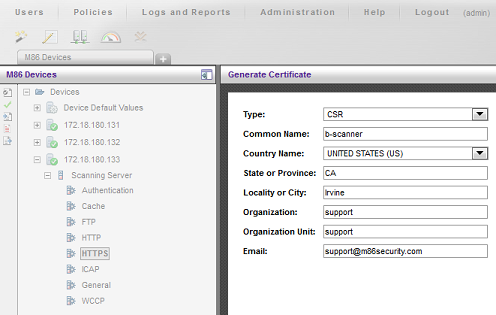
3. System responds with "Operation Succeeded" message, with the CSR request data in the background. Click OK and copy CSR data as simple text data.

4. Commit the changes. Do not create new CSR requests for other devices managed under same Policy Server.
5. Navigate to the MS-PKI Web GUI and select "Request a certificate" task:

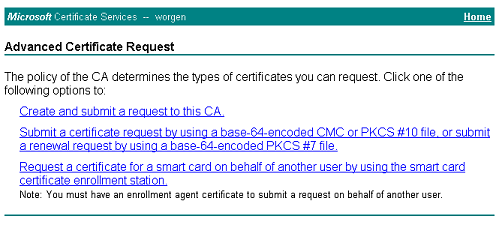
6. Submit advanced certificate request:

7. Choose the option to submit CSR by using a base-64-encoded CMC or PKCS#10 file:
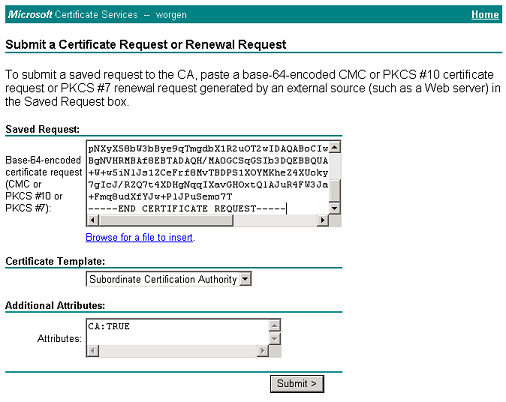
8. Paste CSR data that was copied in step 3 above.
Before submitting a request make sure Certificate Template is set to use Subordinate Certification Authority and "CA:TRUE" is set as Additional Attribute.
9. Select Base 64 encoded option and download certificate:
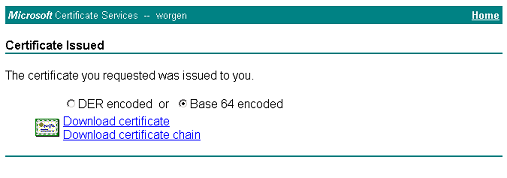
10. Save the certificate on your system:

11. Open this certificate using text editor and copy the data as simple text data:

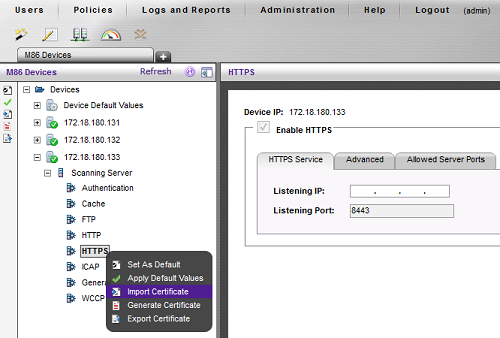
12. Navigate to the Devices section in Trustwave SWG GUI, right-click the HTTPS module on the scanner and choose Import Certificate option:
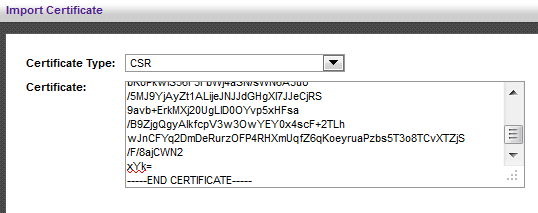
13. Choose CSR Certificate Type in the right pane and paste in certificate data that was copied in step 10 above:
14. Commit changes. Certificate can now be exported from the device.
If required to sign CSR certificate for more than one scanning server, it is important to perform above steps as separate procedure for every device.


