
LevelBlue Completes Acquisition of Cybereason.  Learn More

LevelBlue Completes Acquisition of Cybereason.  Learn More

Services
Cyber Advisory
Managed Cloud Security
Data Security
Managed Detection & Response
Email Security
Managed Network Infrastructure Security
Exposure Management
Security Operations Platforms
Incident Readiness & Response
SpiderLabs Threat Intelligence
Solutions
BY TOPIC
Offensive Security
Solutions to maximize your security ROI
Operational Technology
End-to-end OT security
Microsoft Security
Unlock the full power of Microsoft Security
Securing the IoT Landscape
Test, monitor and secure network objects
Why LevelBlue
About Us
Awards and Accolades
LevelBlue SpiderLabs
LevelBlue Security Operations Platforms
Security Colony
Partners
Microsoft Security
Unlock the full power of Microsoft Security
Technology Alliance Partners
Key alliances who align and support our ecosystem of security offerings
Loading...
Loading...

HOWTO: How can I view DMI event log

Expand / Collapse


This article applies to:

  • R3000
  • Enterprise Reporter
  • Threat Analysis Reporter

Question:

  • How can I view DMI event log

Procedure:

To view the DMI log, please use the following procedure.

    1) Reboot the system, when the Supermicro logo is displayed press the delete key to go into the BIOS setup menu.

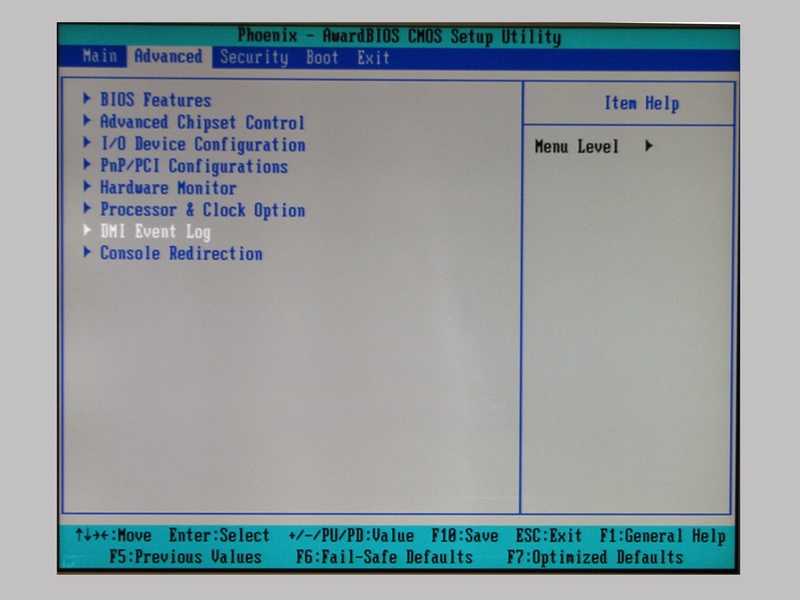
    2) Using the arrow keys, move over to the right to highlight 'advanced' menu and press enter.  See attached photo 'advanced_menu' for an example of this menu.


    3) Using the arrow keys, move down to the 'DMI event log item', and press enter.  See attached photo 'view_log' for an example of this menu.
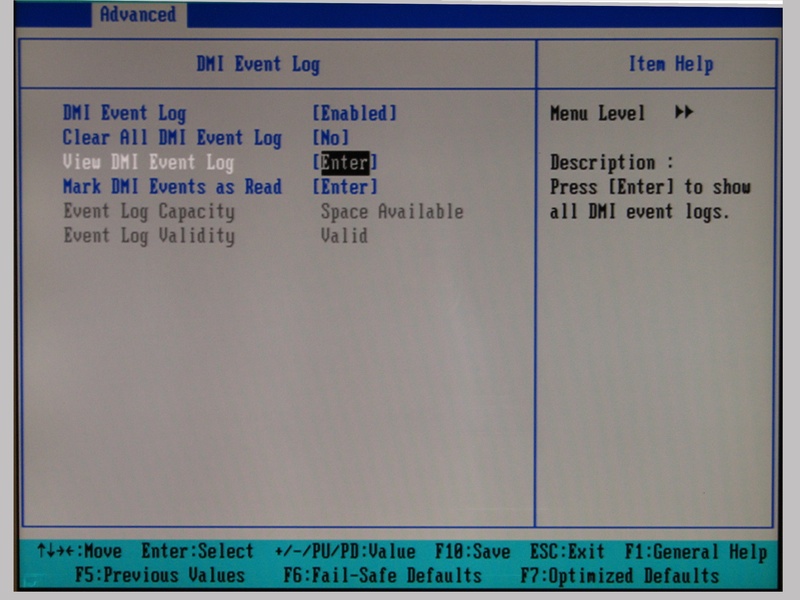


    4) Using the arrow keys, move down to the 'View DMI event log' choice, and press enter.  A pop-up window will be displayed, Look for any memory errors.  These would say something like ECC error or similar.

    5) To exit from the BIOS setup, press the escape key 3 times, this will take you to the exit menu.  Use the arrow keys to move down and select the 'exit without saving' choice, and press enter.  A popup window will appear with the confirmation question "quit without saving?".  Type a Y and press enter to confirm.  The system will reboot.


To contact LevelBlue about this article or to request support:


Rate this Article:
     
Tags:

Add Your Comments


Comment submission is disabled for anonymous users.
Please send feedback to Trustwave Technical Support or the Webmaster
.